

Win 98 Setting
Windows ’98, unlike its predecessors, makes connecting onto datainfosys a simple process. If for any reason you do not have the Internet Connection Wizard on your system, follow the instructions for Windows ’95. There are only a few minor differences to the setup procedure.
If your machine is not stand-alone and is connected to other machines around it, on a network, you should seek advice from your systems administrator before continuing.
Creating a New Internet Connection
- Click “Start”
- Select “Programs” and then “Internet Explorer”
- Click the “Connection Wizard”
Once the Wizard has started;
1.
Select the option ‘I have an existing Internet account. . .’ and Click “Next”
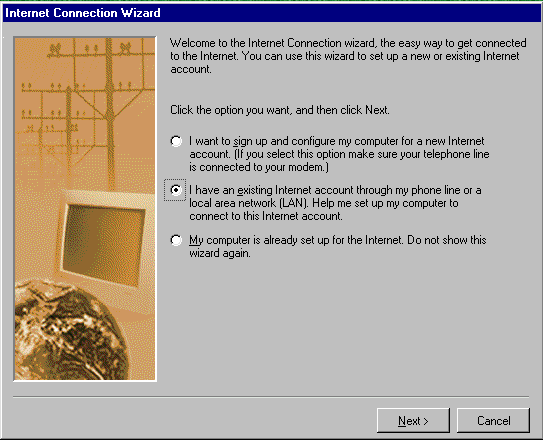
2.
Since you are already using an Internet Service Provider (datainfosys), select the first option and click “Next”
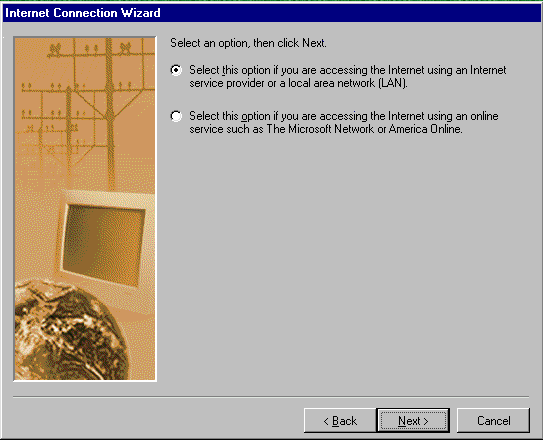
3.
Since you are connecting to us using your telephone line, select the first option, ‘Connect using my phone line’, and click “Next”
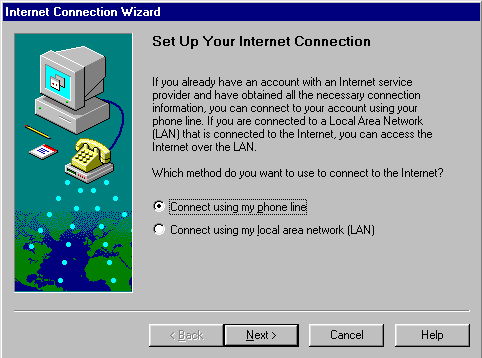
4.
You may be asked to either make a New connection or to Select a dialer from a list. Click ‘Make a New Connection‘ and click “Next”
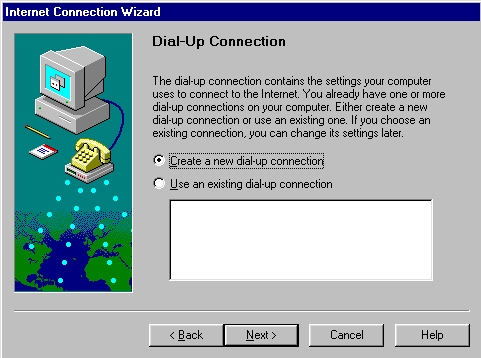
5.
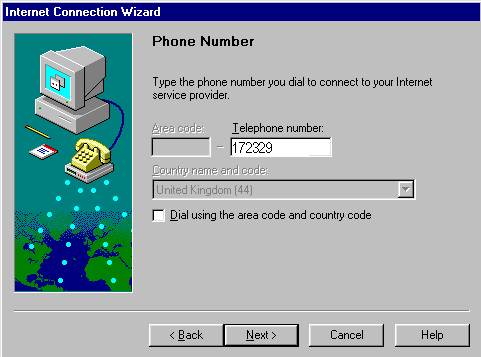
You will now be asked to enter the telephone number that you are dialing. For datainfosys this number should be 172329. Make sure that Dial using area code and country code is NOT ticked. If it is, remove it by clicking on the tick box, then click “Next”
6.
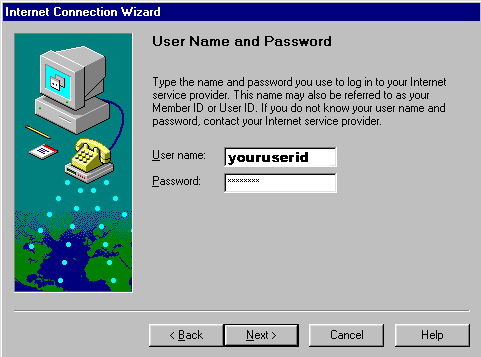
Type in your username and password, and Click “Next”
7.
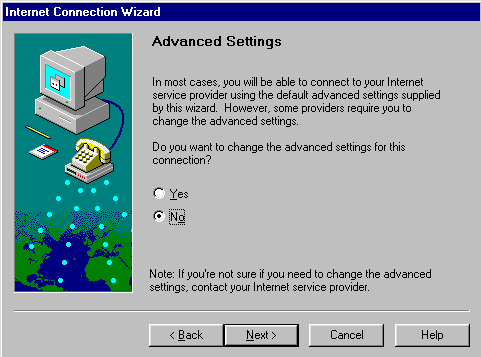
You will next be asked if you wish to change the Advanced settings. Select the No box and click “Next”
8.
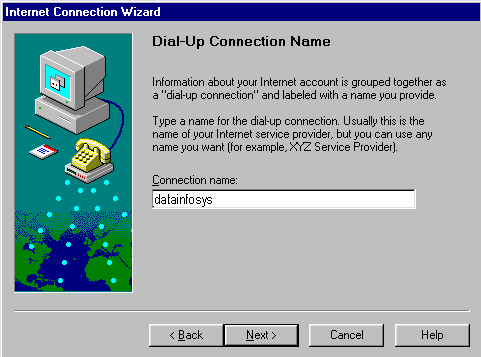
Enter datainfosys as you Dialup Connection Name and click “Next”
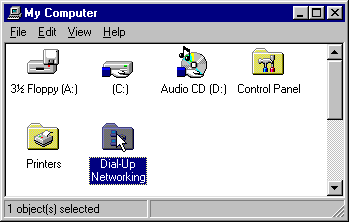
- Double click “My Computer”
- Double click “Dial Up Networking”
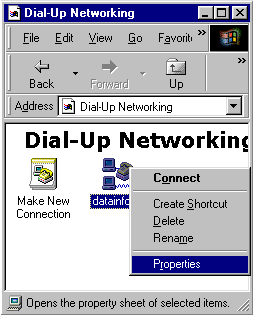
- Right click on your datainfosys icon
- Select Properties
- Ensure all details are as those described above.
1.
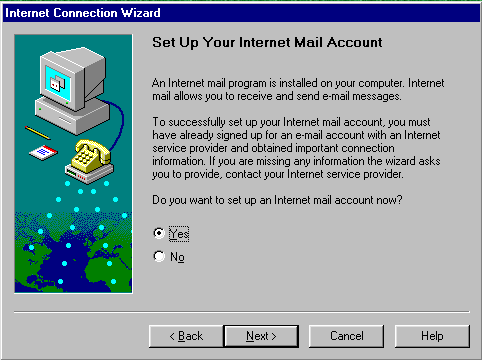
Select “Yes” when asked if you wish to set up your email account
2.
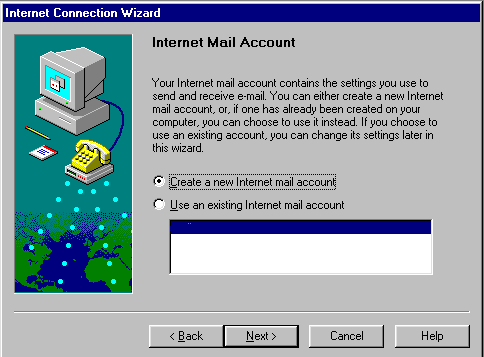
Select Create a new Internet mail account
3.
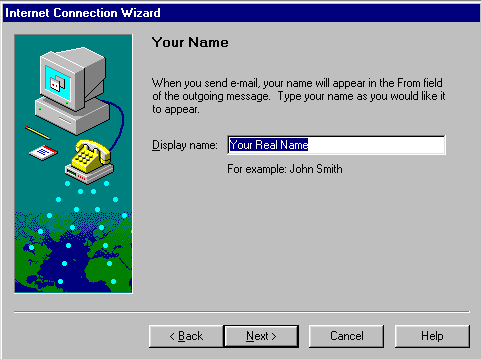
Type your name how you want people to see it when they receive a message from you, and click “Next”
4.
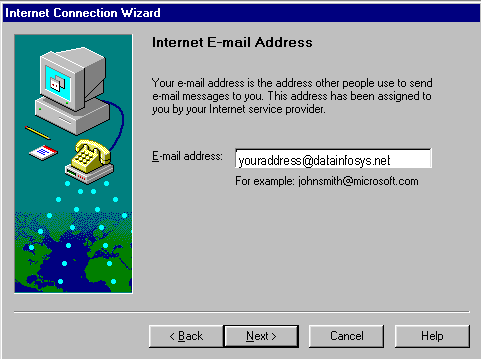
Type your email address, and click “Next”
5.
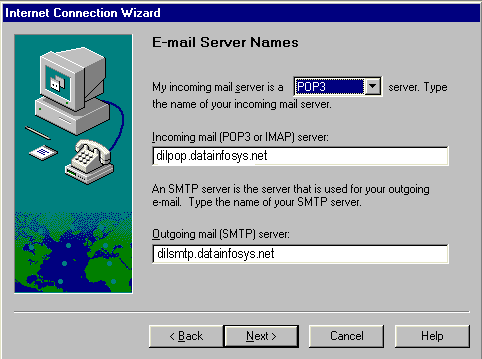
Make sure that your Mail Server is selected as ‘POP3’ by clicking the down arrow
In the Incoming Mail Server box, type ‘dil.datainfosys.net’
In the Outgoing Mail Server box, type ‘dil.datainfosys.net’ Click “Next”
6.
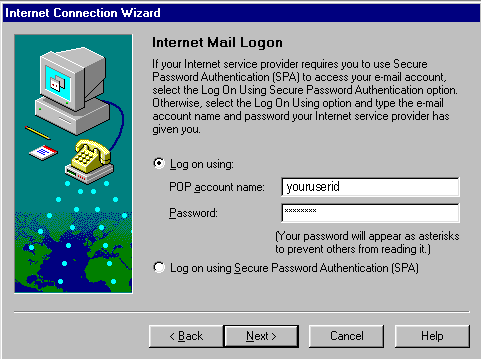
Make sure that the option Log on Using is selected In the POP Account Name: type in your POP User Name
Then enter your POP password, and click “Next”
7.
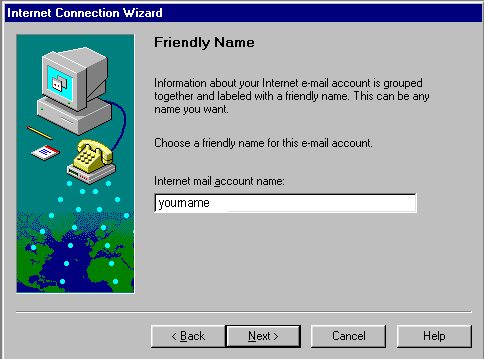
You will now be asked for an Internet Mail Account name, to identify the account on your machine. For your convenience, we recommend you enter the first part of your email address, and click “Next”
8.
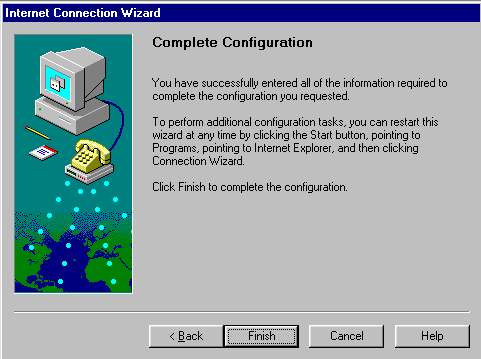
Click “Finish” Your Internet connection is now complete
1.
Double click the My Computer Icon

2.
Double click the Dial-Up Networking icon
3.
Highlight the datainfosys icon, and click the RIGHT mouse button once to display a menu
4.
Select Create Shortcut, and the following message will appear
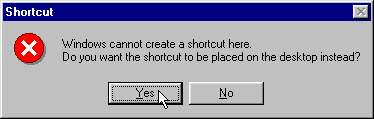
“Windows cannot create a shortcut here. Do you want the shortcut to be placed on the desktop instead?”
Click Yes to this prompt
Simply double click the icon on your desktop to launch the dialer. Enter your details and click Connect to connect.